AG PRINTS
Partner Matching
Create or update a Matching profile without making a Biodata. Your Biodata and PDF stay separate.
How to use Matching
Example screens use fictional data. Your Biodata PDF is separate from Matching. English stays visible; choose Bengali or Hindi for additional help.
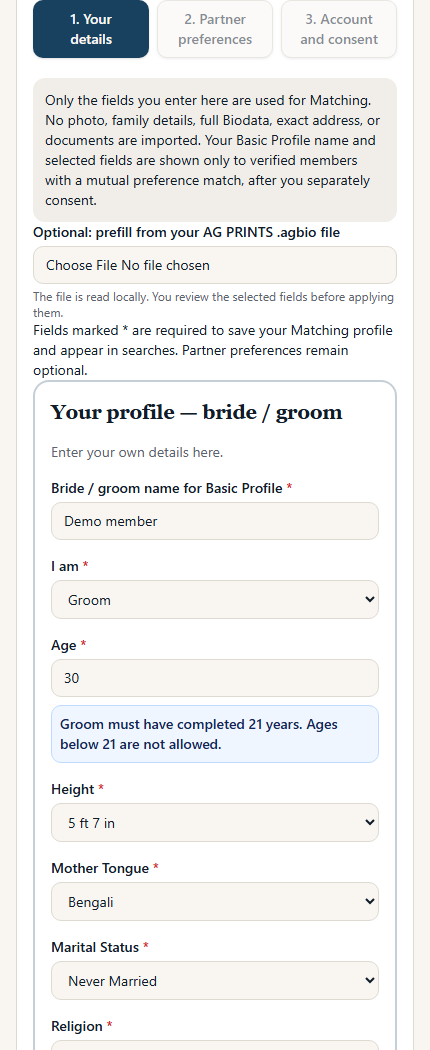
1. Enter your own details
Fill the required fields marked *. Bride must be at least 18; groom at least 21. Choose Next to continue. Optional Biodata file import only fills the fields you review.
1 → Your details → Next
View example
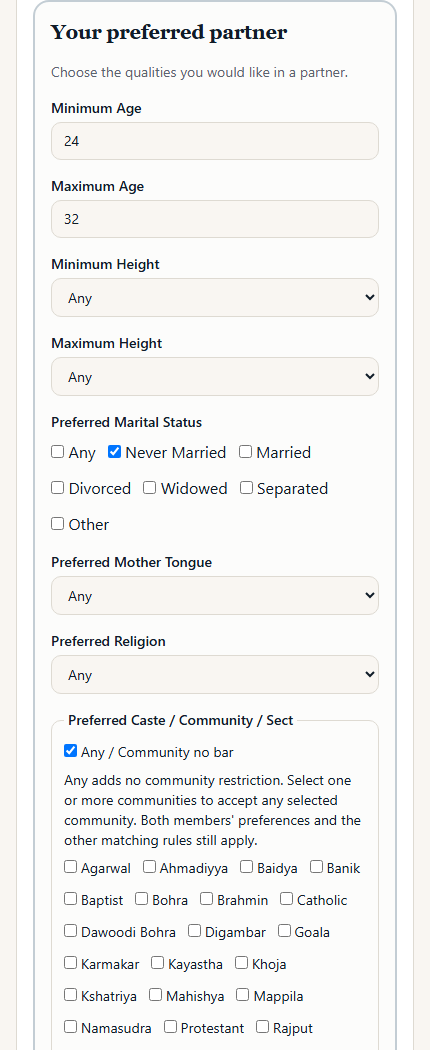
2. Choose partner preferences
Preferences are optional. Community Any adds no community restriction; multiple communities mean any one of those selected. Both members' preferences and the other matching rules still apply. Choose Next.
2 → Partner preferences → Next
View example
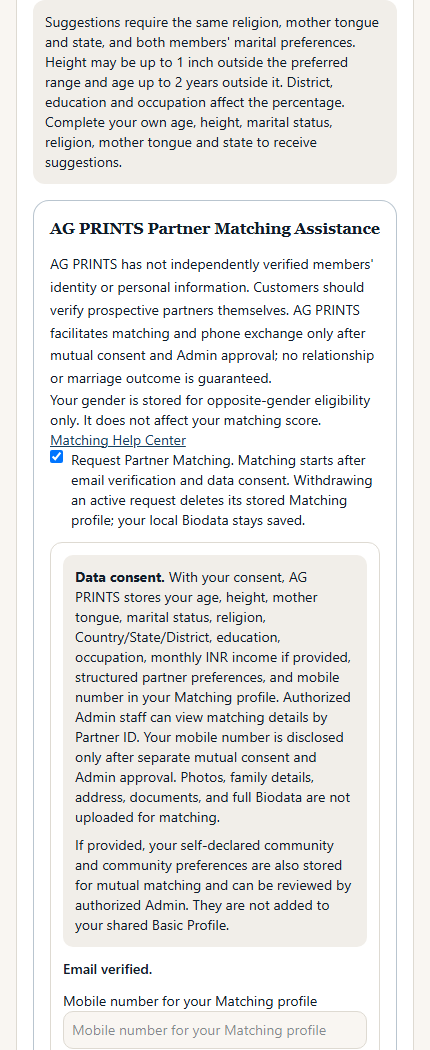
3. Verify email and activate Matching
Register with your email and password, then follow the confirmation email. Or log in to your existing account. Enter your own mobile number, read the data consent and tick it if you agree, then save/activate. One number can belong to only one stored Matching profile. No SMS/OTP is sent.
3 → Account and consent → Save
View example
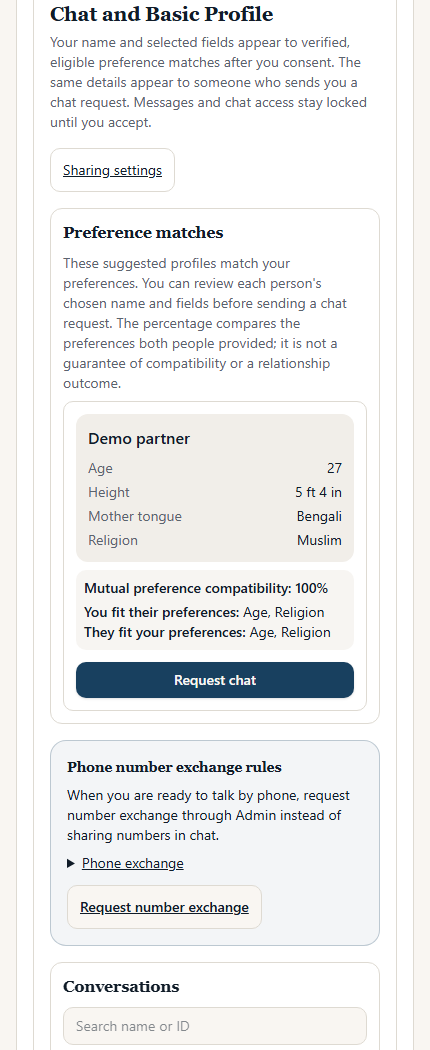
4. Choose what others can see, then find matches
On Matching home, first save your separate Basic Profile sharing consent and selected fields. Eligible suggestions then appear. Review a profile and request chat. A percentage compares preferences; it does not verify identity or guarantee compatibility. Edit profile & preferences opens the saved form again.
Sharing settings → Preference matches → Request chat
View example
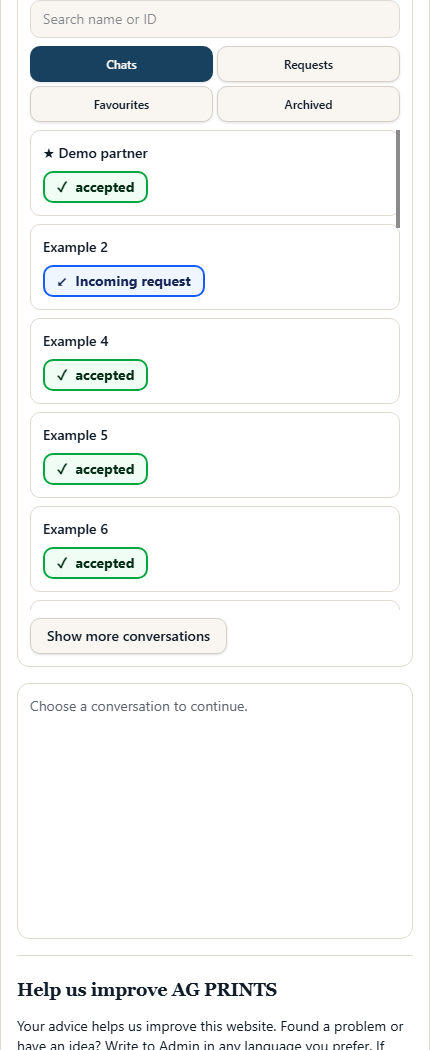
5. Find and organize conversations
Use Requests for incoming/outgoing chat requests. Messages open only after acceptance. Search by name or Partner ID. Favourites keeps selected chats easy to find. Archived hides chats only from your own main list and keeps messages. A new incoming message restores an archived chat.
Search · Chats · Requests · Favourites · Archived
View example
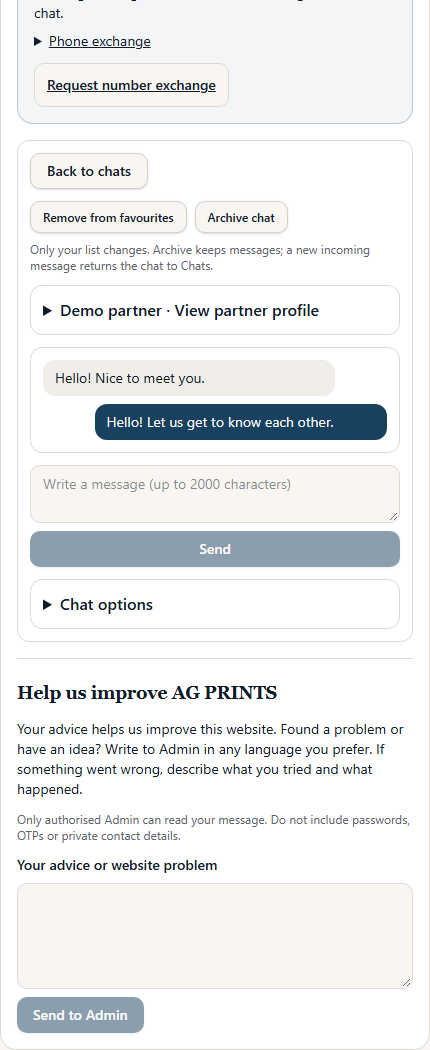
6. Chat safely
Write a message and choose Send. Chat options contains Report, Close and Block. Archive keeps messages. Close permanently deletes messages for both people; Block also prevents further requests. Read confirmations carefully. Sharing settings lets you manage or withdraw Basic Profile consent.
Archive keeps messages. Close deletes them.
View example
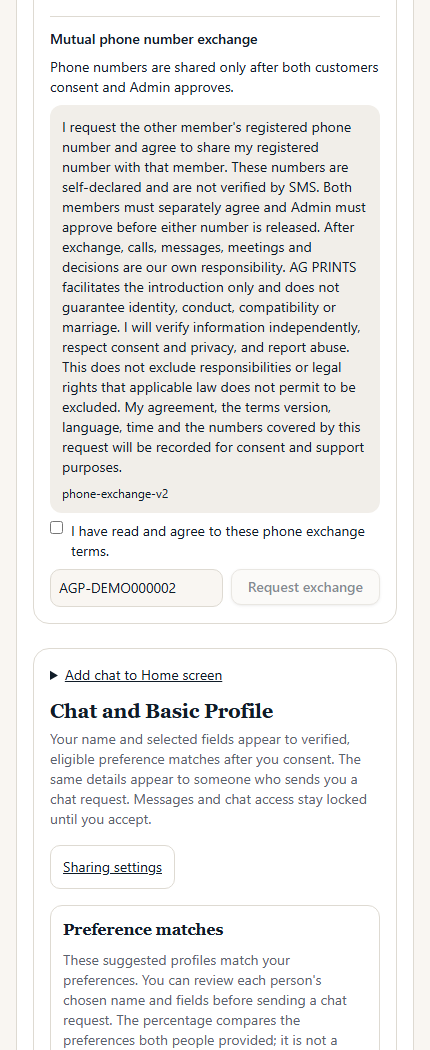
7. Request registered numbers through Admin
When ready to call, choose Request number exchange. Check the partner ID and read and accept the separate exchange terms. The other member must also agree, then Admin approves release. Numbers are self-declared, not SMS/OTP verified. Admin cannot confirm privately shared numbers match registered numbers.
You request → Partner agrees → Admin approves
View example
Profile loading. Please wait.
The file is read locally. You review the selected fields before applying them.
Fields marked * are required to save your Matching profile and appear in searches. Partner preferences remain optional.
Your profile — bride / groom
Enter your own details here.
Minimum completed age: Bride 18 years; Groom 21 years.
Self-declared only. This list is not exhaustive; use Other if needed.
Your preferred partner
Choose the qualities you would like in a partner.
Suggestions require the same religion, mother tongue and state, and both members' marital preferences. Height may be up to 1 inch outside the preferred range and age up to 2 years outside it. District, education and occupation affect the percentage. Complete your own age, height, marital status, religion, mother tongue and state to receive suggestions.
AG PRINTS Partner Matching Assistance
AG PRINTS has not independently verified members' identity or personal information. Customers should verify prospective partners themselves. AG PRINTS facilitates matching and phone exchange only after mutual consent and Admin approval; no relationship or marriage outcome is guaranteed.
Your gender is stored for opposite-gender eligibility only. It does not affect your matching score.
Matching Help CenterIf provided, your self-declared community and community preferences are also stored for mutual matching and can be reviewed by authorized Admin. They are not added to your shared Basic Profile.
Register or log in with your email and password
Use a password with at least 8 characters.
Your Matching form is kept on this browser for up to 24 hours while you verify email. Return to this browser to finish activation. Passwords and consent are not saved with this draft.